DiskDigger Photo & File Recovery: A Complete Guide to Data Restoration
In today’s digital world, losing important photos, videos, or documents can be a stressful experience. Whether it’s due to accidental deletion, system failure, memory card formatting, or virus attacks, data loss can happen at any time. Fortunately, data recovery tools like DiskDigger Photo & File Recovery offer a reliable solution for restoring lost files. DiskDigger has become one of the most trusted recovery apps for Android and Windows users due to its simplicity, powerful scanning engine, and high recovery success rate. This article explores DiskDigger in detail, including its features, working process, advantages, limitations, and real-world use cases.
What Is DiskDigger Photo & File Recovery?
DiskDigger is a data recovery application designed to retrieve lost or deleted files from internal storage, SD cards, USB drives, and external hard disks. Originally developed for Windows computers, DiskDigger later became widely popular as an Android app for recovering deleted photos and videos without needing advanced technical skills.
The app specializes in recovering:
- Deleted photos and images (JPEG, PNG, RAW)
- Videos and audio files
- Documents (PDF, DOC, XLS)
- Archive and system files (in the PC version)
DiskDigger works by scanning the storage sectors where deleted files once existed and reconstructing recoverable file fragments. It is widely used by photographers, phone users, students, and professionals who accidentally erase critical files.
How DiskDigger Works
When a file is deleted from a device, it is not instantly destroyed. Instead, the storage system marks the space as available for new data. Until that space is overwritten, recovery tools like DiskDigger can restore those files.
DiskDigger performs two types of scans:
1. Quick Scan
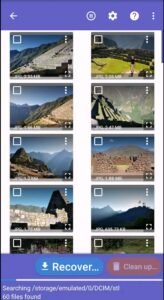
This mode searches for files that still have directory structure intact. It is fast and suitable for recently deleted files. It works without root access on Android devices.
2. Full Scan (Deep Scan)
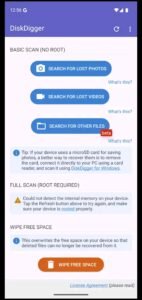
This advanced mode scans every sector of the storage drive, identifying file signatures (headers and footers). It allows recovery of files even after formatting or severe data loss. On Android, this mode typically requires root access for full internal storage scanning.
Once the scan is complete, DiskDigger displays a preview of recoverable files, allowing users to select and restore only the files they need.
Key Features of DiskDigger
DiskDigger offers a wide range of useful features, making it a powerful yet user-friendly recovery tool:
1. Photo and Video Recovery
The app is especially well-optimized for recovering deleted photos and videos, even from formatted memory cards.
2. Works Without Root (Basic Scan)
Users can recover basic media files without rooting their Android devices, which makes it safe for beginners.
3. Deep Scan With Root Access
Advanced users can unlock deeper recovery features by giving root access, enabling recovery of documents, hidden data, and system files.
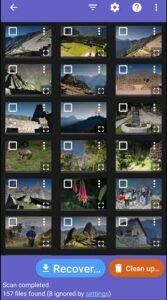
4. File Preview Before Recovery
DiskDigger displays thumbnails or previews of files before recovery, helping users identify exactly what they need.
5. Filter and Sorting Options
Users can filter by:
- File size
- File type
- File format
- Date of deletion
This saves time during large scans.
6. Multiple Save Locations
Recovered files can be saved to:
- Local device storage
- SD card
- Cloud services such as Google Drive, Dropbox, or FTP servers
7. Storage Cleanup Feature
DiskDigger also provides a secure file wiping tool that permanently deletes selected files to free up space and protect privacy.
DiskDigger for Android vs Windows
DiskDigger is available in two major versions:
DiskDigger for Android
- Focused mainly on photo and video recovery
- Works on both rooted and non-rooted devices
- Simple touch-based interface
- Ideal for mobile users who accidentally delete personal data
DiskDigger for Windows
- Supports recovery from hard drives, SSDs, USB drives, and memory cards
- Can recover documents, compressed files, and system files
- Powerful deep scan options
- Suitable for professional data recovery tasks
The Windows version is considered more advanced, while the Android version is optimized for everyday users.
Advantages of DiskDigger
DiskDigger has gained massive popularity due to the following benefits:
1. High Recovery Success Rate
DiskDigger uses advanced scanning algorithms that increase the chances of recovering lost files, even after formatting.
2. Simple and User-Friendly Interface
The app is designed for beginners. No technical knowledge is required to start a scan and retrieve files.
3. No Immediate Root Requirement
Non-rooted Android users can still recover many photos and videos without risking device warranty or security.
4. Supports Many File Formats
From simple images to complex document files, DiskDigger supports a wide range of formats across platforms.
5. Free Version Available
The free version allows preview and limited recovery, which is helpful for users who want to test recovery before upgrading.
6. Lightweight and Fast
The Android app is small in size and does not heavily impact device performance during scans.
Limitations of DiskDigger
Despite its strengths, DiskDigger also has some limitations:
1. Root Required for Full Recovery on Android
Without root, recovery is limited to cached images and thumbnails rather than original full-resolution files.
2. Overwritten Data Cannot Be Recovered
If new data replaces the deleted files, recovery becomes nearly impossible.
3. Free Version Restrictions
The free version only recovers photos and videos, while documents require a premium upgrade.
4. Scan Time Can Be Long
Deep scans on large storage devices may take several hours to complete.
5. No 100% Guarantee
Like all data recovery tools, DiskDigger cannot guarantee complete recovery in all situations.
How to Use DiskDigger on Android (Step-by-Step)
- Install DiskDigger from the app store.
- Launch the app and choose the storage type (internal memory or SD card).
- Select Basic Scan (non-root) or Full Scan (root).
- Wait for the scanning process to complete.
- Preview the recovered files.
- Select the files you wish to restore.
- Save the files to device storage or cloud backup.
This process is simple and usually takes only a few minutes for basic scans.
Use Cases of DiskDigger
DiskDigger is widely used across different industries and personal scenarios:
- Recovering family photos accidentally deleted from smartphones
- Restoring wedding photography lost from memory cards
- Retrieving office documents erased due to system crash
- Recovering videos erased from mobile phones
- Restoring files from virus-infected USB drives
- Helping forensic teams analyze digital evidence
It is suitable for both everyday users and professionals who deal with sensitive digital data.
Data Safety and Privacy
DiskDigger maintains strong data protection measures:
- All scans are performed locally on the user’s device.
- Recovered files are stored only where the user chooses.
- No personal data is uploaded without permission.
- Cloud upload is optional and encrypted.
This ensures that user privacy is protected during the recovery process.
Free vs Pro Version Comparison
| Feature | Free Version | Pro Version |
|---|---|---|
| Photo Recovery | Yes | Yes |
| Video Recovery | Yes | Yes |
| Document Recovery | No | Yes |
| Root Deep Scan | Limited | Full |
| Cloud Saving | Limited | Full |
| Ad-Free Experience | No | Yes |
The Pro version is recommended for professional and large-scale recovery tasks.
Tips to Improve Recovery Success
- Stop using the device immediately after data loss
- Avoid installing new apps on the affected storage
- Enable airplane mode to prevent background data writing
- Perform the scan as soon as possible
- Save recovered files to a different storage location
Following these tips significantly improves recovery results.
DiskDigger in Comparison With Other Recovery Apps
Compared to popular tools like Dr.Fone, EaseUS, and Tenorshare, DiskDigger stands out because:
- It is lightweight and fast
- It does not always require a PC
- It offers effective free recovery options
- It works on both mobile and desktop platforms
However, PC-based tools may still offer deeper recovery for completely damaged drives. DiskDigger excels in mobile data recovery scenarios.
App Link
Future of DiskDigger and Data Recovery
As digital storage technology evolves with larger SSDs, cloud systems, and encrypted memory, recovery tools like DiskDigger are continually being upgraded to handle newer file systems and stronger security protocols. With increasing reliance on smartphones and IoT devices, DiskDigger is expected to expand support for:
- Encrypted storage recovery
- AI-based deep scans
- Cloud-to-cloud recovery
- Better forensic data analysis
Its continued development ensures that it remains a reliable tool in the digital age.
Final Verdict
DiskDigger Photo & File Recovery is a powerful, reliable, and user-friendly solution for restoring lost digital data. Whether you are a casual smartphone user who has lost photos or a professional seeking to recover critical documents, DiskDigger provides an efficient and affordable recovery system. Its ability to work without root access, offer real-time previews, and store recovered files securely makes it one of the best data recovery tools available today.
While it does have certain technical limitations, especially without root permissions, its overall performance, accuracy, and ease of use make DiskDigger an essential utility for anyone who values their digital memories and important files. With the right usage approach and timely scanning, DiskDigger can often turn data loss into complete recovery.